

Overview
Zamp can handle tax calculations on any orders in your WooCommerce store, and manual calculations in WooCommerce Admin. The installation process is quick and easy.Prerequesites
Installation Process
Installing the Plugin
1
Downloading the Zamp Tax Zip Plugin
- See this
- Download the plugin locally.
2
Logging into the WordPress / WooCommerce Admin Dashboard
Ensure you have access to your admin dashboard for the WooCommerce store.
3
Installing the Plugin
- Navigate to Plugins
- Click Add New
- Click Upload Plugin
- Select the Zamp Tax plugin ZIP file
- Click Install Now
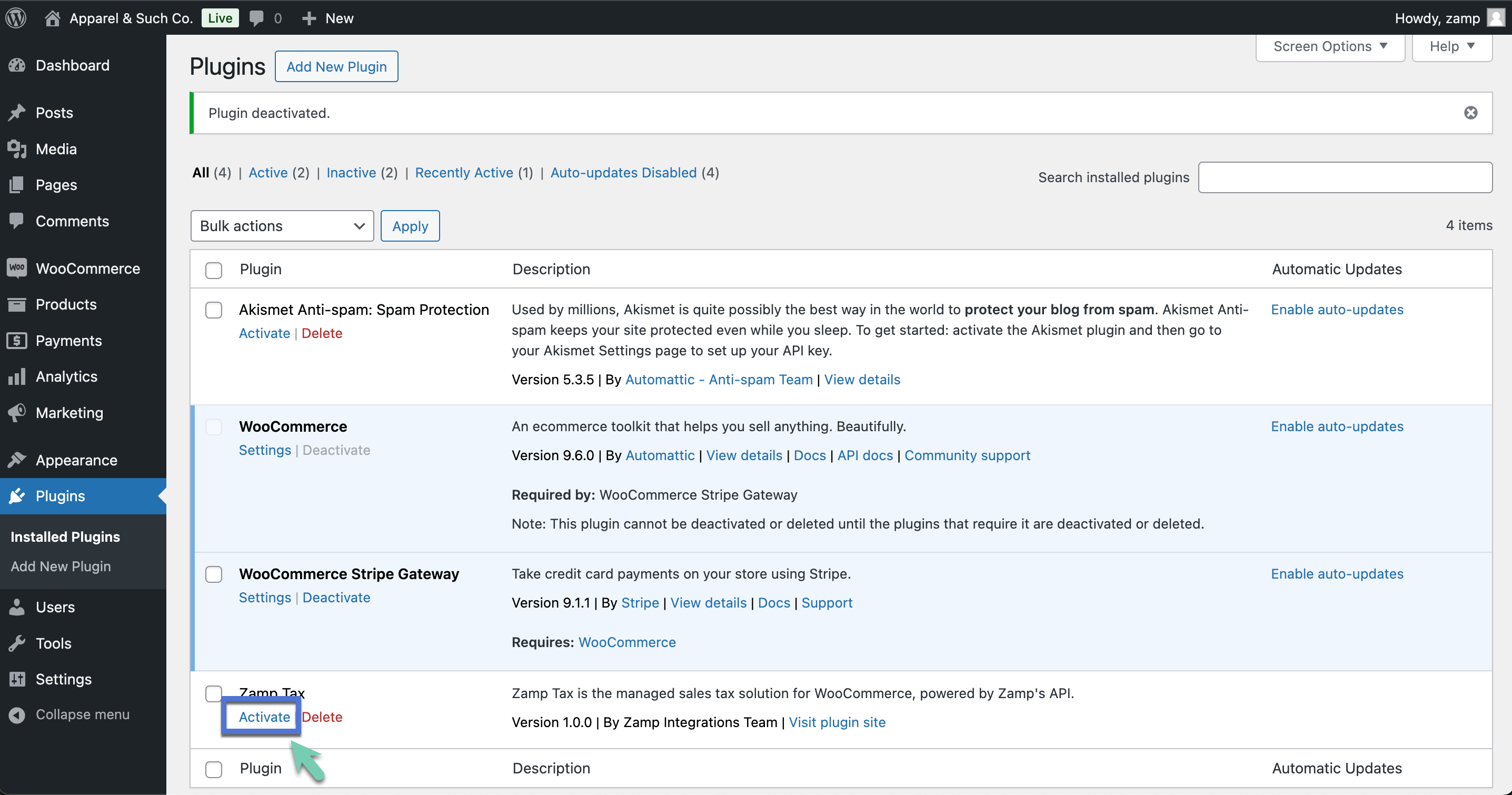
- Find Zamp Tax on the list, and click Activate Plugin
Initial Configuration
1
Opening the Zamp Tax Settings
- Hover over** Plugins** and click Installed Plugins
- Find Zamp Tax for WooCommerce and click Settings
2
Connecting the Zamp API Token
- Under API Token, enter your Zamp API token
- Click Save Changes
- Ensure the** Zamp Token Status** is Connected

3
Toggling Settings
- Enable sales tax calculations
- Check this box if Zamp is handling calculations via the Zamp Tax Engine
- Refresh Tax Codes
- Click this button to pull in the list of Zamp Tax Codes. The same codes listed under the Zamp Tax Codes section.
- Default Product Tax Code
- The default code is the “General Tangible Personal Property” code. If your default taxability is a different code, you can configure your own default tax code.
- Enable transaction sync
- Check this box if you want to post transactions to your Zamp account.
- Send transactions when order status is processing
- You will have the option of either pushing transactions to Zamp when they are in the Processing status, or after it has been marked as Completed.
- Enable address validation
- Check this box if you would like to leverage Zamp’s integration to Smarty, a third party address validation service.
- Enable transaction sync recalculate
- Only applicable for historical sync functionality. If checked, Zamp will recalculate tax on your historical transactions when pushed to Zamp. This is an optional setting.
- Enable debug logging
- Highly recommended that this box is checked, for scenarios where Zamp is assisting with troubleshooting.
- Click Save changes
4
Verifying your Store Address
Under WooCommerce > Settings > General, confirm that your store’s address is correct, and this information may be used in origin-based tax scenarios.