

Overview
A Zamp Onboarding Manager will work with you on getting your BigCommerce storefront configured with the Zamp Tax app, but you’re also welcome to walk through these steps yourself, if you’d like.Prerequisites
Process
1
Installing the Zamp Application
The Zamp Tax app is in BigCommerce’s official Apps & Integrations exchange. You can get it for your BigCommerce store here.
2
Adding your Zamp API Key
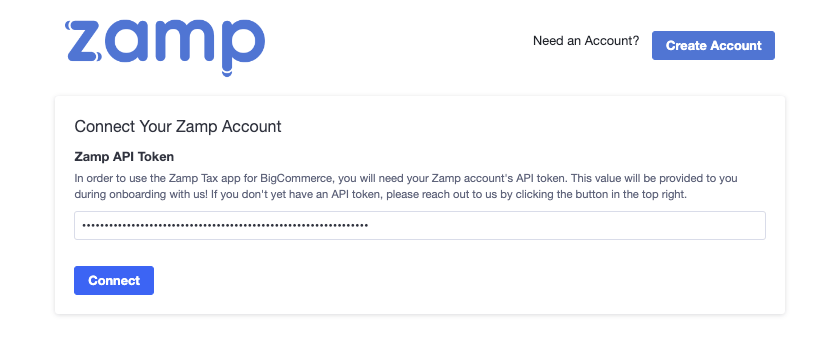
- Once the app has been set as the Tax Provider, navigate to Apps -> Zamp Tax.
- Upon a fresh install of the app, you will be required to provide your Zamp API token. Without the API token, the Zamp Tax app will not work with BigCommerce.
- Copy the value and enter it in the provided field. The token will be validated upon save to ensure it is the correct value.
3
Setting Zamp as the Tax Provider
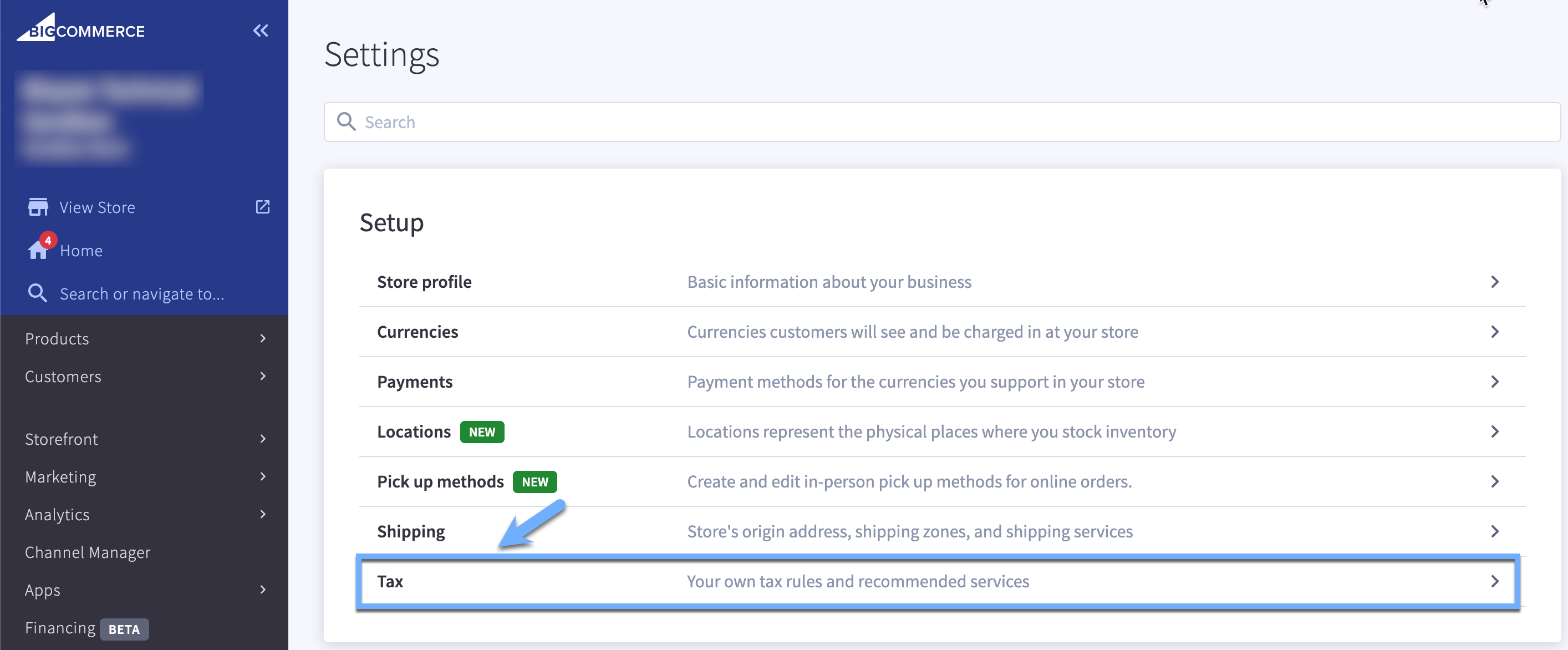
- First select Home from the left navigation panel.
- Select Settings.
- Under Setup, select Tax.
-
- If you already see Zamp Tax under “Configured tax services”, proceed to step 6. Otherwise, proceed to step 4.
- In the top right, select Add tax service.
- Under All Tax Services, locate Zamp Tax and select Install, then navigate back to Settings -> Setup -> Tax.
- Under Configured tax services, select Enable for Zamp Tax.
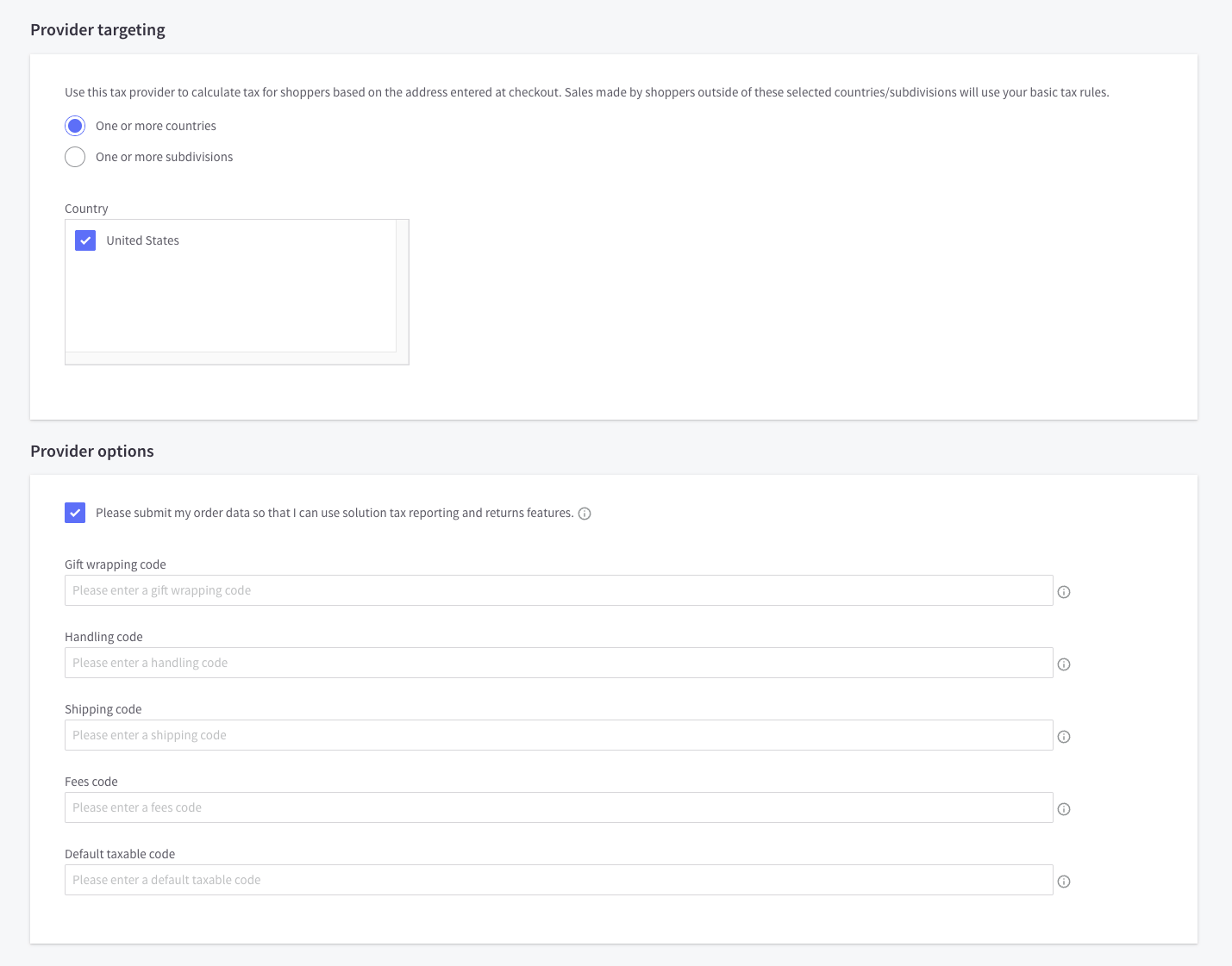
- Under Provider targeting, select One or more countries and click United States.
- Further down under Provider options, ensure the Please submit my order data option is selected, or transactions will not be sent to Zamp.
-
- Once saved, Zamp is now your default tax provider.
4
Enabling Fallback Rates
It is worth noting that BigCommerce has safety net options available in cases where it can’t communicate with the default tax provider. For example, if your Tax Provider’s services were unreachable for sales tax calculations.Chat with your Zamp Onboarding Manager regarding setting general fallback rates for the states where you have Nexus.
5
Configuring the Zamp Tax app
- **Taxable states - **Taxable states should coincide with states configured in your Zamp account. Your Onboarding Manager will be available to help determine which states should be added to this multi-select list.
- Having a state listed as a Taxable state in your configurations means it is one Zamp will produce sales tax calculations for, so long as the customer’s shipping address state matches.
- Any state not listed as a Taxable state will not have sales tax calculations occur. These would be states that you aren’t required to remit sales tax in. For example, not having a physical presence (nexus) in the state and not having met the economic nexus thresholds.
- **Enable Zamp calculations - **Setting “Allow Zamp to handle your Tax Calculations?” will have your checkout experience utilize Zamp for sales tax calculations.
- This toggle gives you the opportunity to decide if you’d like to use Zamp to calculate sales tax for you.
- **Enable Zamp transaction reporting - **Setting “Send your transaction reports to Zamp?” will have your transactions report to Zamp when a transaction has been paid for or has been marked as “Completed”.
- This toggle gives you the opportunity to decide if you’d like to use Zamp for transaction reporting, which will allow us to file sales tax returns for you.