> ## Documentation Index
> Fetch the complete documentation index at: https://developer.zamp.com/llms.txt
> Use this file to discover all available pages before exploring further.
# SuiteTax Configuration Guide
> SuiteTax-specific instructions to configure the Zamp bundle.
## Setting up the Zamp Tax Vendor
This is a required step as this vendor will be used to assign all Sales Tax liabilities generated from transactions using the Zamp Tax Code (from a later step).
**Lists > Relationships > Vendors > New**
1. Company Name: **Zamp Tax**
2. Category: **Tax Agency**
3. The remainder of the values can be in accordance to your company
## Setting up the Zamp Tax Type
**Setup > Tax > Tax Types**
1. Name: **External Tax (Zamp)**
1. *DO NOT DEVIATE FROM THIS FORMAT*
2. Select **United States** as the Country
3. **Liability / Sales Tax Account** can be blank
4. Under the **Accounts** subtab, this will list any nexus that Zamp is configured to calculate tax on.
1. For each **Nexus**, you can map the account to your GL that will house all of your liability. Zamp makes it easy to see a breakdown state-by-state.
If a nexus is missing from the Zamp Tax Type, Zamp will **not** calculate tax via our tax engine.
## Subsidiary Nexus
This step can be time-consuming if your NetSuite instance has transactions far in the future
### Configuring Subsidiary Nexus
**Setup > Company > Subsidiaries > (Pick your subsidiary)**
1. Tax Agency: **The NetSuite agency record for the nexus (not Zamp)**
2. Tax Reg. Number: **As assigned by the taxing agency**
3. Tax Engine: **SuiteTax Engine**
1. Leave this as such
4. Tax Exempt: **LEAVE UNCHECKED**
1. **DO NOT check this box unless you are absolutely certain that subsidiary should never collect sales tax.**
5. Effective From: **The date Zamp should begin calculating tax**
6. Valid Until: **Optional**
### Preventing Additional SuiteTax Override
**Setup > Company > Subsidiaries > (Pick your subsidiary)**
1. Click on the **Tax Registrations** subtab
2. Click **Edit**
3. For any configured nexus that does NOT have the **Zamp Tax** for the **Tax Agency:**
1. Mark the **Valid Until** date to either the current day, the next day, or the date you plan on enabling Zamp calculations and posting
2. If you run into an error setting a **Valid Until** date, due to transactions existing in the future, reach out to your Zamp representative for instructions on how to identify those future transactions.
1. If you have future transactions causing conflicts with saving, you will see the below error:
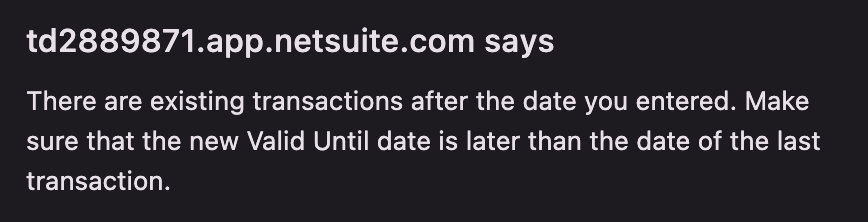 3. Repeat for the remainder of nexuses set up for any subsidiary Zamp will handle calculations for.
4. Then, navigate to **Zamp > Tasks > API Connection > View (Zamp | Sales Tax Settings)** and hit **Edit**
5. For the nexuses you entered **Valid Until** dates, pick the earliest date as the **Zamp Start Date**. This will ensure that nexus conflict errors will not appear for any transactions before the nexus cutoff dates.
## Additional Recommendations
If you were previously using Avalara or another Tax Provider bundle, you may need to delete the other provider's bundle to prevent any unwanted overrides.
3. Repeat for the remainder of nexuses set up for any subsidiary Zamp will handle calculations for.
4. Then, navigate to **Zamp > Tasks > API Connection > View (Zamp | Sales Tax Settings)** and hit **Edit**
5. For the nexuses you entered **Valid Until** dates, pick the earliest date as the **Zamp Start Date**. This will ensure that nexus conflict errors will not appear for any transactions before the nexus cutoff dates.
## Additional Recommendations
If you were previously using Avalara or another Tax Provider bundle, you may need to delete the other provider's bundle to prevent any unwanted overrides.